

POS hardware
compatibility
What to test before
a bulk order
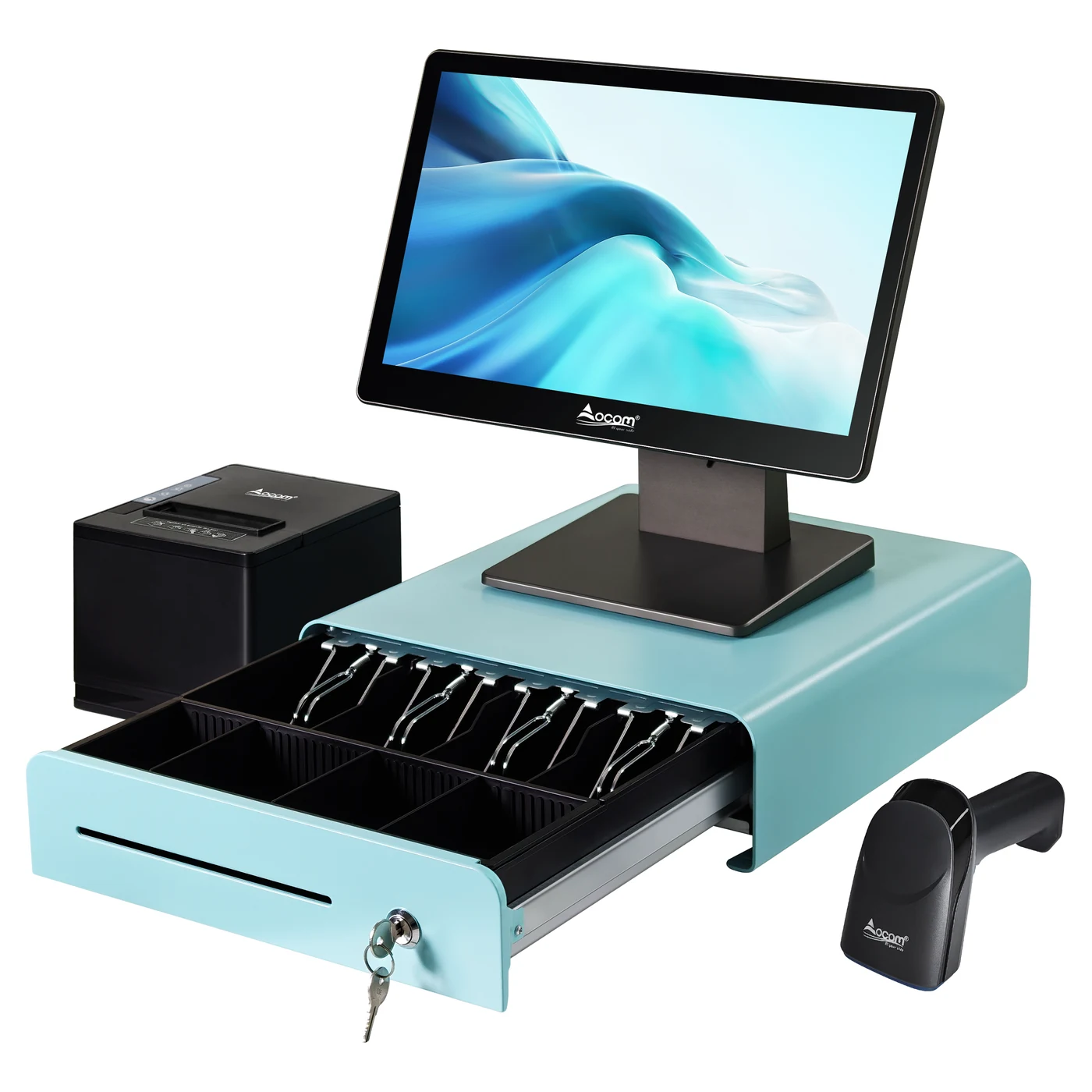
A POS application opening on a touchscreen is only the first check in a hardware evaluation. Before ordering terminals for a customer or a store network, you also need to verify receipt printing, barcode input, the cash drawer, the customer display and the payment workflow.
For resellers and system integrators, a useful compatibility record names the exact terminal configuration, software version, peripherals and connection methods tested together. This guide explains how to build that record before committing to a bulk order.
1. Confirm the software requirements before choosing the terminal
Start with the POS software provider’s supported devices and operating systems. Ask which application you will deploy, which version it requires and whether the provider supports your proposed terminal configuration.
Software requirements can rule out an otherwise suitable machine. For example, Shopify’s official FAQ states that its POS application is available for supported iOS and Android devices, with additional device requirements, and is unavailable for laptop or desktop computers. A Windows terminal cannot be selected for that application simply because it has enough memory or processing power. [1]
Record the operating system build, application or browser version, and any required services or drivers. If you are replacing an existing terminal, list the equipment the customer expects to keep.
2. Verify each peripheral through the intended connection
Ask the software provider how each device communicates with the application. A USB socket, a network port or a printer protocol listed on a specification sheet does not establish that the application supports the complete setup.
Poster illustrates why the connection matters. Its hardware guide distinguishes LAN-connected printers from USB printers attached to a computer, with different platform support for those paths. Use the documentation for your own application and test the exact route you plan to deploy. [2]
| Device | Questions to resolve before testing |
|---|---|
| Receipt printer | Which model, interface and integration method does the application support? Are a driver, SDK, bridge or additional device required? |
| Barcode scanner | Which connection and input mode will you use? Which barcode types and keyboard layout must be tested? |
| Cash drawer | How is it connected and triggered? Have the supplier and integrator confirmed the electrical and application requirements? |
| Customer display | Does the application support this display arrangement? How will it open and recover after a restart? |
| Payment terminal | Has the payment provider confirmed the device, integration and target market for this project? |
Odoo’s receipt-printer documentation provides another example: it distinguishes network ePOS printing from configurations that use an IoT system. Read these requirements for the intended Odoo version rather than treating an ESC/POS label as a guarantee of direct printing. [3]
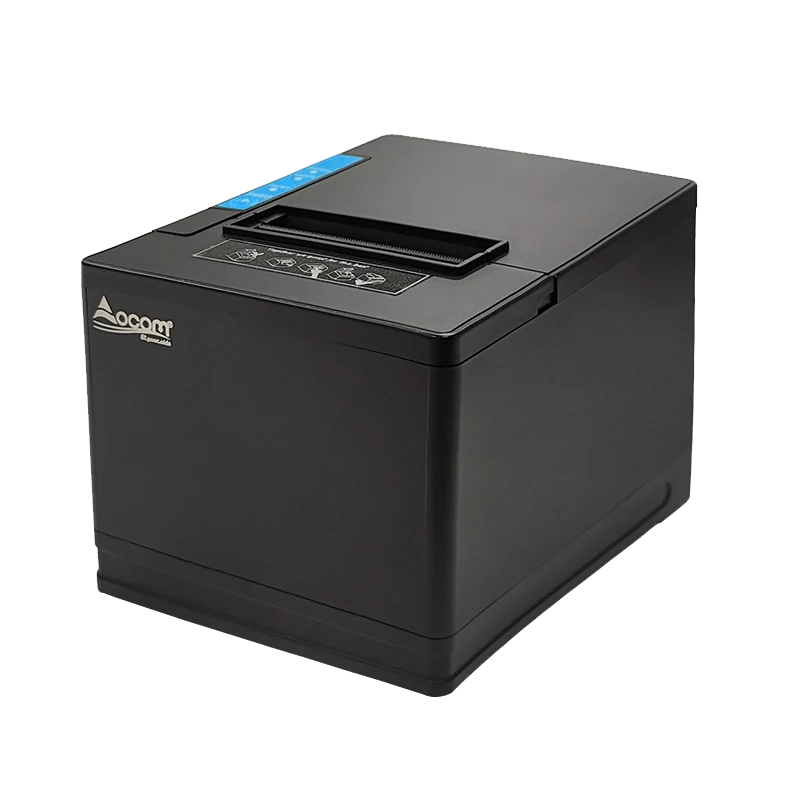 Receipt printerPrint path and receipt output
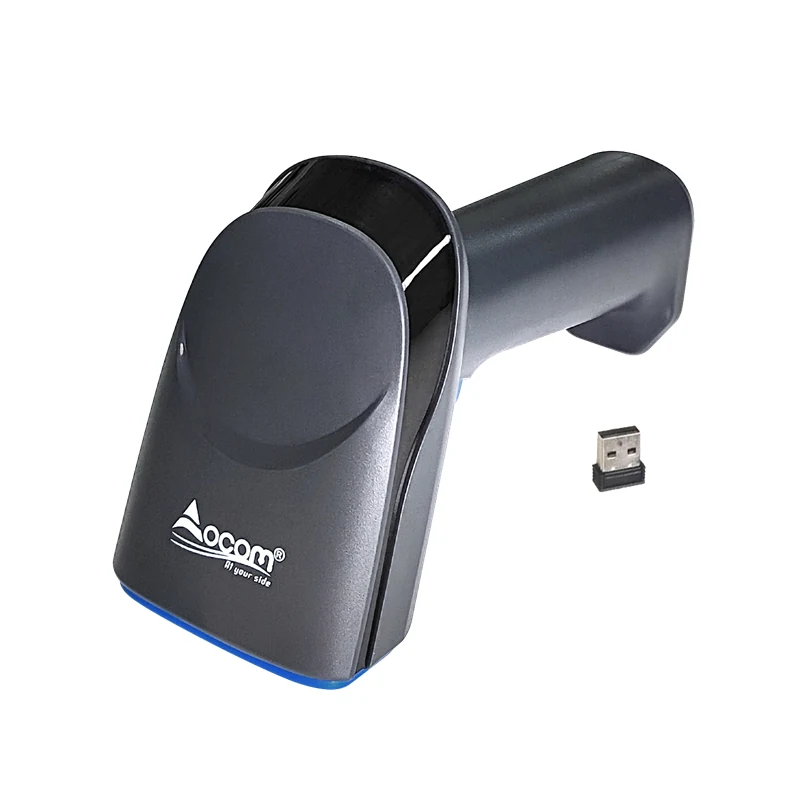 Barcode scannerInput mode and item matching
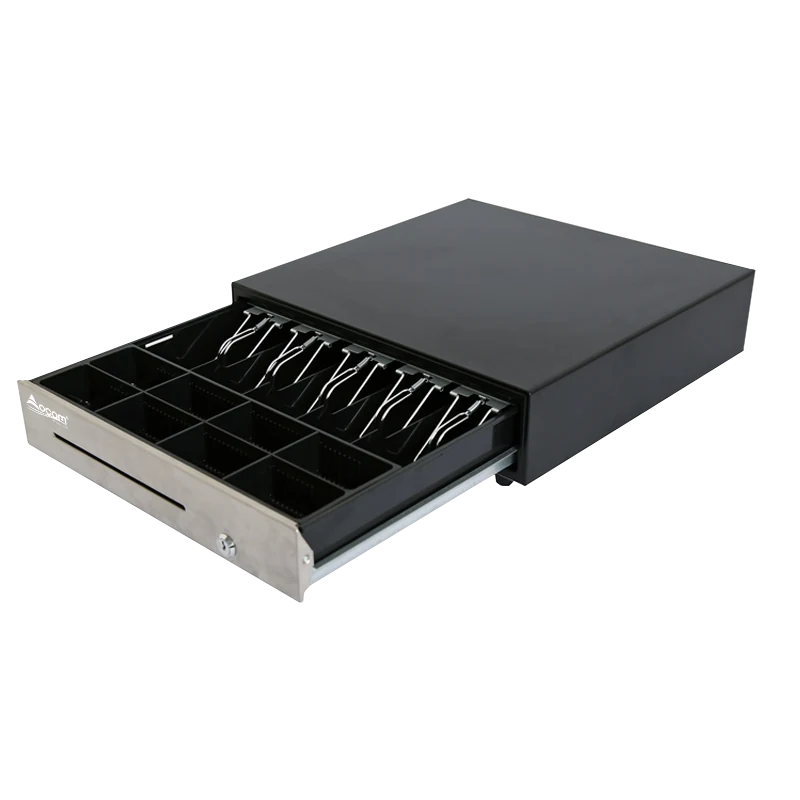 Cash drawerConnection and trigger
3. Test the full checkout sequence on a sample
Prepare the sample with the same software, peripherals and connection methods proposed for the order. Agree on the expected result for each step before the test begins.
- Start the system. Restart the terminal, sign in and open the POS application. Check that the required devices are available.
- Scan actual products. Use representative barcodes from the customer’s catalog. Check item matching, quantities and repeated scans.
- Complete a sale. Follow the agreed cash workflow and the payment provider’s approved test procedure for integrated payments.
- Check the receipt. Review the required language, currency symbols, layout and any features such as cutting or reprinting.
- Check the drawer and customer screen. Confirm that the drawer behaves as configured and the customer sees the intended order information.
- Run exceptions. Test the supported cancellation, refund and receipt-reprint workflows.
Save the result, software versions and relevant settings. A supplier utility printing a test ticket and the POS application printing a completed sale should be separate entries in the test record.
4. Include restart and recovery checks
Customer-display setup deserves its own test. In a Reddit discussion, a user described having to reposition and maximize the customer window after closing Odoo or changing tabs. That is a useful acceptance-test scenario, although it does not establish how other configurations will behave. [4]
For your sample, restart the terminal and application, power-cycle the printer, and check whether staff can resume the agreed workflow. If offline operation is required, have the software and payment providers define its limits, then test a controlled network interruption using test transactions.
For a multi-store project, also agree on update ownership and support responsibilities. The hardware supplier, software integrator and payment provider should each know which problems they will investigate.
5. Keep the approved sample configuration tied to the order
Give the approved configuration a reference number and include it in the purchase specification. Record the terminal variant, processor, memory, storage, operating system, screen arrangement, peripheral models, cables and integration components.
Ask suppliers to identify proposed substitutions before shipping. If a change affects the tested configuration, decide which checks must be repeated. Begin a larger rollout with a pilot that reflects the intended store workflow, and agree on acceptance criteria before expanding.
Preparing a POS hardware inquiry for OCOM
Include your POS software name and version, target operating system, deployment country, required peripherals, screen arrangement and expected order quantity. State which devices must be retained and which integrations still need validation.
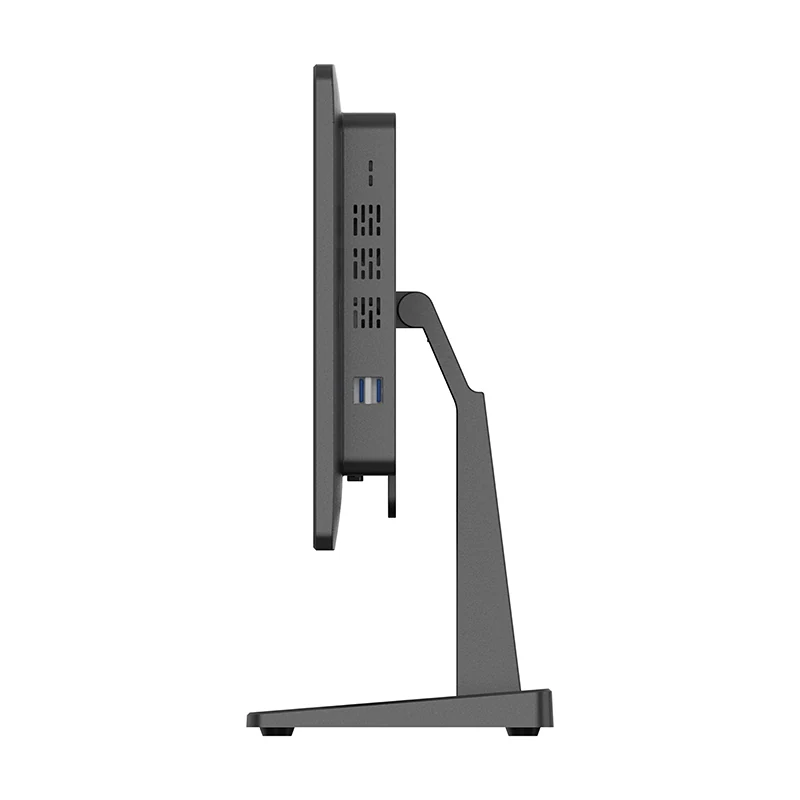
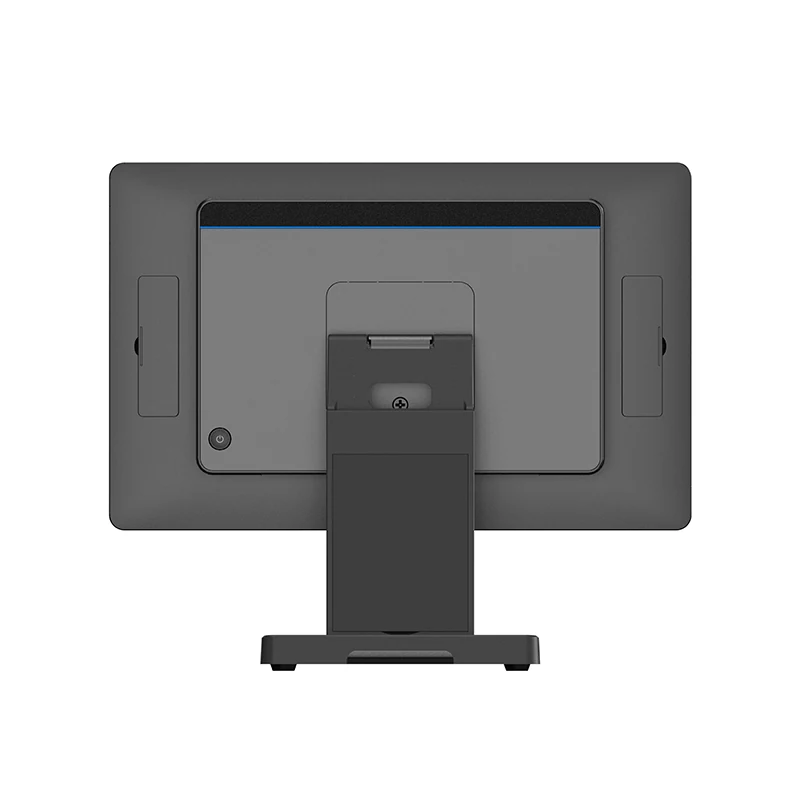
The OCOM POS-1566 product page lists Windows and Android variants and secondary-display options. Confirm the specifications for the exact variant in your quotation, then evaluate that configuration with your software and peripherals. Product specifications alone do not establish application compatibility. [5]
Send OCOM your project requirements, including the software, peripherals and quantity, to discuss the proposed hardware configuration and sample requirements.
- Shopify Help Center: Shopify POS FAQ
- Poster: Supported Hardware
- Odoo 19: Receipt printers
- Reddit: Odoo customer-screen window behavior (individual user report)
- OCOM: POS-1566
Research checked October 23, 2026. Confirm the current software documentation and project configuration before procurement.